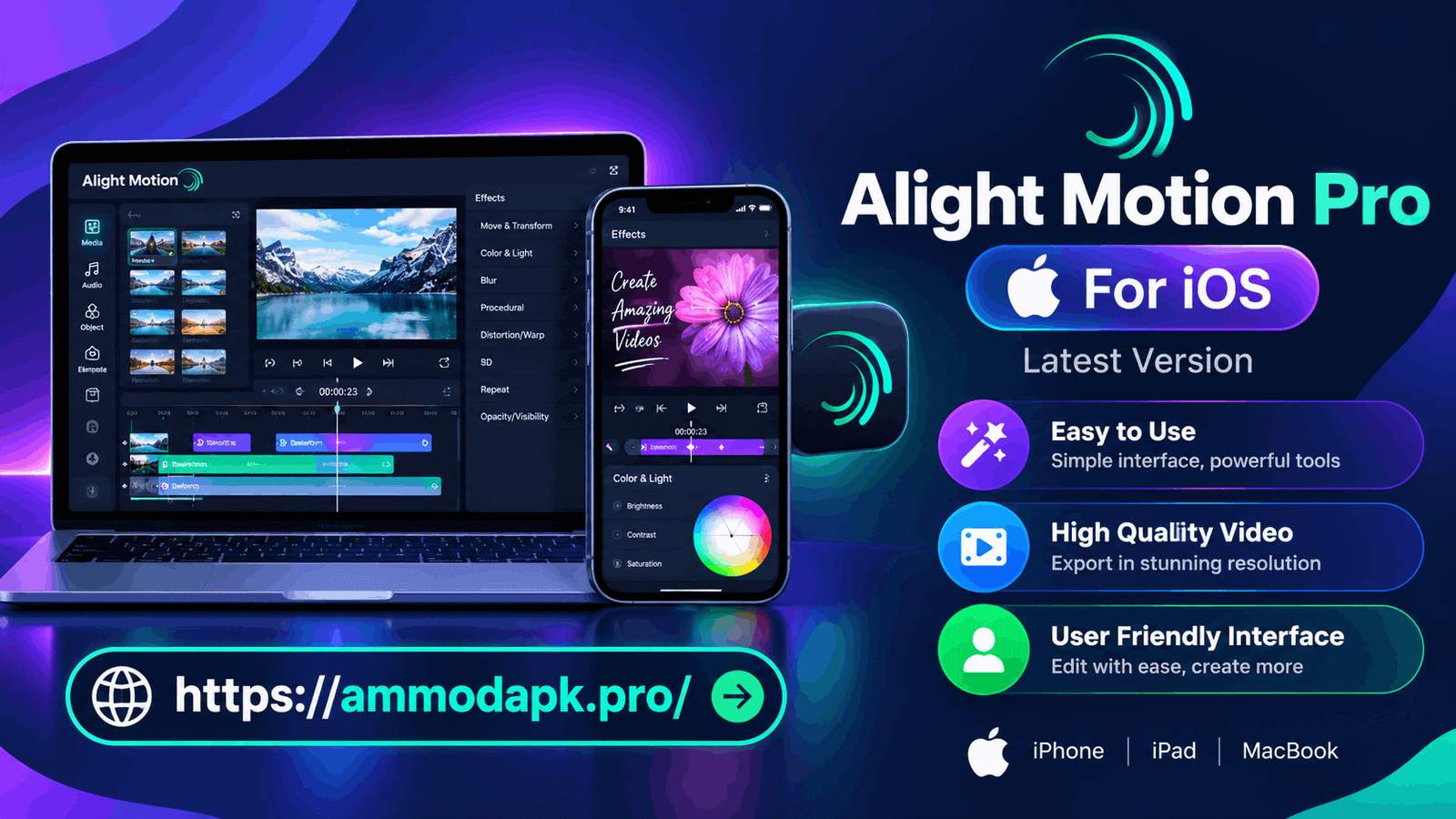
Looking for Alight Motion for iOS to create stunning animations, motion graphics, and professional-looking video edits on your iPhone or iPad? Alight Motion offers creative tools for animating text, combining visual layers, applying effects, and producing engaging videos for social media.
Whether you create Instagram Reels, TikTok videos, YouTube Shorts, animated typography, or cinematic edits, Alight Motion can help you bring your ideas to life directly on your mobile device.
Unlike Android, iOS does not support APK installation. If you want to install Alight Motion on an iPhone or iPad, use the official Apple App Store listing where the app is available for your device and region. This guide explains how to find the app, check compatibility, explore its editing features, and get started with your first project.
Quick Links
- Find Alight Motion on the Apple App Store
- Alight Motion APK Download for Android
- Alight Motion for PC
- Explore Older Versions
- Browse Alight Motion Tutorials
What Is Alight Motion for iOS?
Alight Motion is a mobile motion-graphics and video-editing application developed by Alight Creative, Inc. It provides tools for creating animated designs, editing visual elements, working with layers, and producing motion-based content.
The iOS version is intended for compatible Apple mobile devices. Depending on the app version and your device, its editing tools can help you create animated titles, visual effects, layered compositions, transitions, and other creative projects.
One of the main attractions of Alight Motion is its keyframe-based animation workflow. Rather than simply placing clips together, you can animate individual elements and control how they move or change over time.
Alight Motion may be useful for:
- Creating animated social-media videos.
- Designing motion graphics and animated logos.
- Adding movement to text and graphic elements.
- Editing short videos for online platforms.
- Combining images, shapes, and supported media.
- Experimenting with transitions and visual effects.
- Creating reusable designs and animation styles.
The exact features, export options, and membership benefits can vary by app version and account status. Check the current App Store listing and in-app information for the latest details.
How to Download Alight Motion on iPhone
Installing Alight Motion on an iPhone is straightforward when the app is available for your device and region.
Step 1: Open the Apple App Store
Open the App Store on your iPhone. You can search for Alight Motion directly or visit Apple's website to navigate toward the official app listing.
Make sure you select the correct application and check the developer information before downloading it.
Step 2: Check Compatibility
Before installing the application, review the App Store listing for the current iOS requirements and supported devices.
Check the following details:
- The minimum supported iOS version.
- Whether your iPhone or iPad is compatible.
- The available storage space required for installation.
- Any relevant app updates or compatibility notes.
- Whether the app is available in your region.
Requirements can change with updates, so avoid relying on an old iOS version number or storage estimate without checking the current listing.
Step 3: Download and Install Alight Motion
If the app is available and compatible with your device:
- Open its official App Store listing.
- Review the app details and current requirements.
- Tap Get or the displayed download button.
- Authenticate with your Apple Account or device security method if requested.
- Wait for the installation to finish.
- Open Alight Motion from your Home Screen.
You may need an internet connection for downloading the app, signing in, or accessing certain online services.
Step 4: Open the App and Start Editing
Once installed, open Alight Motion and explore its interface. Create a new project, select suitable project settings, and add a supported media element.
Start with a simple animation, such as moving a title across the screen or fading an image in and out. This gives you an opportunity to understand the timeline, layer controls, and keyframe workflow before attempting a more complex edit.
Can You Download Alight Motion Mod APK on iOS?
The term Alight Motion Mod APK for iOS appears on various third-party websites, but it is technically misleading.
An APK is an Android application package. iPhones and iPads use Apple's iOS application installation system, so an Android APK cannot be installed directly on an iOS device.
If a website claims that you can install an Android APK directly on your iPhone, be cautious. A download button that redirects to the App Store does not mean that a modified iOS version has been installed.
If you want to use Alight Motion on your iPhone, check the official iOS app listing. If you want to explore Android APK versions, visit our Alight Motion APK Download page using a compatible Android device.
Is Alight Motion Premium Available on iOS?
Alight Motion may offer free functionality and paid membership features. The available tools and benefits depend on the current app version, account status, and membership terms.
Before purchasing a subscription, review the official in-app information to understand what is included. Do not assume that an unofficial modified APK can unlock paid features on an iPhone.
If you want watermark-free exports or additional tools, confirm the current membership conditions and export options before starting a project.
Key Features of Alight Motion for iOS
Alight Motion combines animation and visual-editing tools in a mobile workflow. Here are some of the capabilities you can explore, depending on your app version and account.
1. Keyframe Animation
Keyframe animation lets you control how an element changes over time. You can set values at different points in the timeline and use the application to animate the transition between them.
For example, you can animate the position, rotation, scale, or opacity of a supported layer. This makes it possible to create moving titles, logo reveals, animated images, and more elaborate motion graphics.
Keyframes are particularly useful when you want precise control over timing instead of relying entirely on ready-made effects.
2. Multiple Layers
Layer-based editing allows you to combine different elements in a single composition. Depending on the available tools, a project can include images, text, shapes, video, audio, and other supported media.
Using separate layers makes it easier to edit individual elements without rebuilding the whole composition.
For example, you could place a background image on one layer, an animated title on another, and additional visual elements above them. You can then adjust their timing and appearance separately.
3. Visual Effects
Visual effects can change the appearance of footage, images, and graphic elements. They may help you create a distinctive style, emphasize movement, or add atmosphere to a scene.
Experiment with the effects available in your installed version and adjust their settings to suit your project.
For the best results, avoid adding effects simply because they are available. Choose effects that complement the footage and keep important details visible.
4. Text and Typography Animation
Animated typography can make titles, captions, and promotional videos more engaging. You can use text as a central part of a composition or combine it with images and other animated elements.
Depending on the available controls, you may be able to animate text movement, scale, opacity, and other properties.
Text animation can be useful for:
- Intro and outro sequences.
- Animated captions.
- Social-media titles.
- Lyric-style videos.
- Promotional graphics.
- Logo and brand presentations.
Choose readable fonts and make sure your text remains visible against the background.
5. Vector and Bitmap Graphics
Alight Motion supports workflows involving vector and bitmap graphics, with specific capabilities depending on the app version.
Vector elements are useful for shapes and scalable designs, while bitmap images are commonly used for photographs and raster artwork.
When importing graphics, check the supported file formats and use source images with enough resolution for your intended export.
6. Blending and Masking
Blending and masking techniques help you combine visual elements and control which portions of a layer remain visible.
These techniques can be used for overlays, creative transitions, compositing, and other motion-graphics effects.
The available controls depend on the selected layer and installed version. Preview your composition carefully to ensure that the layers blend naturally.
7. Audio and Video Editing
Audio and video work together to create a complete editing experience. Alight Motion's supported media tools can help you coordinate visual elements with a soundtrack and build a more engaging sequence.
For music-based edits, try aligning important animation changes with the rhythm of the audio. Preview the full sequence and check that the audio level is appropriate before exporting.
Supported formats and editing options can vary, so consult the application's current features when importing media.
8. Transitions and Motion Effects
Transitions connect scenes or visual elements. They can be simple, such as fading between clips, or more expressive, using animated movement and other supported effects.
Use transitions to maintain the flow of your video. Consistent timing and a clear visual style usually produce a better result than adding a different effect to every scene.
9. Custom Presets and Reusable Styles
Depending on the version and available features, you may be able to reuse project elements, saved styles, or other reusable resources.
Reusable elements can help you maintain consistency across several videos. They are especially helpful when producing a series of social-media posts or creating content with a recognizable visual identity.
Always check that imported resources come from a source you trust and are compatible with your installed app version.
10. Video Export Options
Export settings determine the final video's resolution, frame rate, and file size. The available options depend on your app version, device capabilities, and account or membership status.
Before exporting, review the settings and choose an output appropriate for your destination. A short test export can help you confirm that the result looks and plays as expected.
Higher-resolution or more complex projects may require additional processing time and storage.
Alight Motion Free vs. Premium on iOS
Alight Motion's free and paid offerings may differ in available features, membership benefits, and export conditions. The exact differences can change, so check the current app listing and in-app subscription information.
Feature | Free access | Paid membership |
Basic editing | Check current app features | Check current membership details |
Animation tools | Availability may vary | Availability may vary |
Visual effects | Some tools may be available | Additional benefits may apply |
Watermark conditions | Check current export terms | Check current membership terms |
Export options | Depend on app version and settings | Depend on app version and membership |
Updates | Subject to app availability | Subject to app availability |
A paid membership does not necessarily mean that every feature is available on every device or in every project. Review the current terms before subscribing.
What Is New in the Latest Alight Motion iOS Version?
Alight Motion receives updates that may introduce improvements, bug fixes, compatibility changes, and new or revised features.
Because the latest version can change, check the official App Store listing for the current version number and release notes rather than relying on an old version mentioned on a third-party website.
When reviewing an update, look for information about:
- Bug fixes and stability improvements.
- Compatibility with newer iOS releases.
- Changes to editing and animation tools.
- Improvements to project handling or exporting.
- New effects or other creative capabilities.
- Changes to membership or in-app purchases.
Before updating an important project, consider keeping a backup of your work and confirming that your current projects remain compatible.
How to Create Your First Alight Motion Project on iPhone
If you are new to Alight Motion, begin with a short project that helps you learn the basic editing workflow.
Step 1: Create a New Project
Open Alight Motion and create a new project. Choose a suitable aspect ratio and resolution based on where you intend to publish the video.
For example, vertical video is commonly used for Reels and Shorts, while landscape video is often suitable for traditional YouTube content.
Step 2: Add a Background or Media Element
Import a supported image, video, or graphic. You can use the element as the foundation for your composition.
Check the crop and positioning before adding more layers.
Step 3: Add Text
Create a title or short caption. Choose a font and color that fit your visual style, and position the text where it remains easy to read.
Step 4: Add Keyframes
Select a supported property and add keyframes at different points in the timeline. Try moving the title from one side of the screen to the other, or animate its opacity to create a fade-in effect.
Preview the movement and adjust the timing until it feels natural.
Step 5: Add Effects or a Transition
If appropriate, apply an effect or create a transition between elements. Keep the design simple while you are learning the interface.
Step 6: Preview and Export
Watch the complete project to check timing, readability, and visual consistency. Choose an available export setting suitable for your intended platform and save the finished video.
Keep a copy of your source media and important project files so that you can make changes later.
Common Alight Motion iOS Problems and Solutions
Alight Motion Is Not Available in the App Store
App availability can depend on your region, device, and the app's current distribution status. Search the App Store and review the official listing. If the app does not appear, check Apple's support guidance and the developer's official information.
Avoid installing configuration profiles or unknown files from websites that promise to bypass normal app distribution.
Alight Motion Will Not Install
Check your internet connection, available storage, iOS compatibility, and any messages displayed by the App Store. Restarting your device and retrying the official installation may help with temporary issues.
If the problem continues, consult Apple's support resources.
The App Crashes During Editing
Crashes may be associated with a software issue, a complex project, insufficient available resources, or compatibility problems.
Close unnecessary applications, restart the device, and test whether a simpler project works. Keep a backup of important work before troubleshooting or updating the app.
Video Export Is Slow
Export time can depend on project length, resolution, effects, and device capabilities. Try exporting a short test project and review the settings available in your version.
If the problem persists, simplify the project and make sure enough storage space is available.
A Project or Imported File Will Not Open
Check whether the file format and project source are supported by the installed version. If the project was created using a different version or a third-party resource, compatibility may vary.
Keep backups of original files and avoid relying on a single copy of an important project.
Frequently Asked Questions
Is Alight Motion available for iOS?
Alight Motion has an iOS version. Check the official Apple App Store listing to confirm current availability and compatibility with your iPhone or iPad.
How can I download Alight Motion on my iPhone?
Open the App Store, find the official Alight Motion listing, check the requirements, and follow the installation instructions if the app is available for your device and region.
Can I install an APK on an iPhone?
No. APK files are designed for Android and cannot be installed directly on iOS. For an iPhone, use the appropriate iOS app distribution method.
Is Alight Motion Mod APK available for iOS?
An Android Mod APK is not an iOS application. Websites may use the phrase “Alight Motion Mod APK for iOS,” but that does not make the APK compatible with an iPhone. Use the official iOS listing and verify any claims about modified versions carefully.
Is Alight Motion free on iPhone?
Alight Motion may provide free functionality alongside paid membership options. Check the current App Store listing and in-app subscription details for the latest pricing and benefits.
Can I use Alight Motion without a watermark on iOS?
Watermark conditions depend on the app's current export rules and membership terms. Review the official information before subscribing or relying on a particular export option.
Does Alight Motion support iPad?
Check the current App Store listing for supported devices and compatibility requirements. Do not assume that every iPad model or operating-system version supports every release.
Can I use Alight Motion offline?
Some editing tasks may work without an internet connection, while downloading, account-related functions, online resources, or other services may require connectivity. Test the functions you need on your device.
Can I import XML files or QR-code resources?
Support depends on the type of resource, the installed app version, and the method used to import it. Follow instructions from a trustworthy source and verify that the resource is compatible with your version.
What is the latest version of Alight Motion for iOS?
The latest version can change over time. Check the official App Store listing and its release notes for the current version number. Avoid treating a version listed on an unrelated download website as verified without confirmation.
Can I use Alight Motion on a Windows PC instead?
Alight Motion is primarily a mobile application. To try its Android version on a Windows computer, you may need a compatible Android emulator. Read our Alight Motion for PC guide for installation and compatibility information.
Final Thoughts
Alight Motion for iOS gives iPhone and compatible iPad users a way to explore mobile video editing, keyframe animation, layered compositions, text effects, and motion graphics.
To get started, find the official app listing, check the current system requirements, install the compatible version, and create a small test project. Explore the available editing tools and export settings to find a workflow that suits your content.
Remember that an Android APK cannot be installed directly on an iPhone, and unofficial claims about unlocked premium features or watermark removal should be verified rather than assumed.
For more resources, visit our Alight Motion APK Download, Alight Motion for PC, and Older Versions pages. You can also explore our editing tutorials for keyframes, transitions, XML resources, QR codes, and other techniques.
Choose the installation method designed for your device, keep your projects backed up, and enjoy exploring new creative possibilities with Alight Motion.